
Uploading your purchase invoice helps us process your package quickly and clear customs accurately. For most warehouses it's recommended; for some it's required before we can ship. Here's how to do it.
Why Invoices Are Required
Your invoice tells us what's in your package and what it's worth, so we can prepare your customs paperwork correctly and match the invoice to the package when it arrives. Uploading it early — ideally before your package reaches the warehouse — is the best way to avoid delays.
Where to Upload Your Invoice
- Go to your account and select your warehouse address.
- Open the Incoming Package section.
- Choose either Upload an invoice or Describe an order.
- In the INCOMING tab, find the Upload section and select your file.
- Upload a PDF or image of your original purchase invoice or order confirmation email.
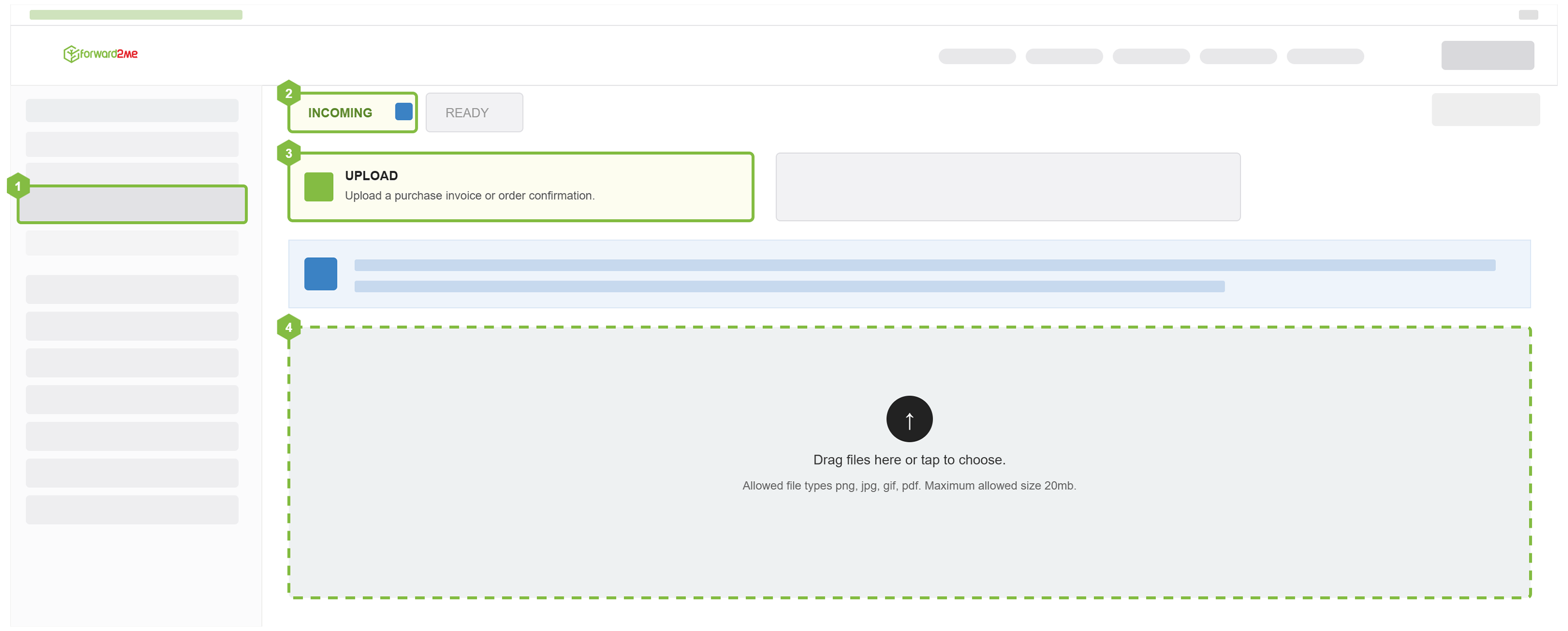
To help us match your invoice to the right package, include the tracking number from your incoming shipment.
Once your package arrives, we'll email you to confirm we've received it. Please allow up to 24 hours for it to be processed and added to your Package Inbox, after which you can arrange delivery and payment.
What Your Invoice Needs to Show
Upload the invoice or order confirmation issued by the retailer where you bought the goods. To be accepted, it must:
- Show the retailer's name and a clear text description of each item — not just a SKU, price, or size.
- Be typed and legible, in the Latin alphabet.
- Be dated within two weeks of your shipment request, so the details are current.
Accepted file formats: PDF, PNG, JPG, or GIF, up to 20 MB. You can upload a PDF from the retailer's website, an order confirmation, or a clear screenshot of your order or confirmation email — as long as each item is clearly listed.
Why an Invoice Might Be Rejected
The most common reasons an invoice is rejected are:
- Missing details — no retailer name, or no text description of the items (product images without text aren't accepted).
- Unclear item names — only a SKU, price, or size, with no clear product name.
- Unrelated screenshots — for example, PayPal transactions, product photos, or chat messages, rather than the retailer's invoice or confirmation.
- Out-of-date invoices — issued more than two weeks before the shipment request.
- forward2me invoices — please don't upload our shipping invoices; only the retailer's.
- Items for a different address — the invoice should only contain items being sent to your forward2me address.
- Handwritten invoices — we can only accept typed documents in the Latin alphabet.
Upload Before Your Package Arrives
The invoice upload option is available for incoming packages that haven't yet arrived at the warehouse. Invoices can't be added once a package has already been received and processed, so it's best to upload yours in advance.
Invoice uploads before arrival are available for our UK, Germany, Guernsey, Japan, and USA warehouses.
Warehouses with Mandatory Invoice Upload
For our US and Guernsey warehouses, an invoice is mandatory. If your package status shows "Awaiting Invoice," you'll need to upload the invoice through your account before we can continue processing the shipment. Please upload it as soon as possible to avoid delays.
See Invoice Upload.
If you have further questions, please contact our Customer Experience team.