
Sometimes we need a document before we can ship your package — most often proof of purchase showing the description and value of your goods. We use it to check that the values entered match your order, and some destinations require it for customs and tax purposes. For example, shipments to Australia and New Zealand are subject to Goods and Services Tax (GST) on both the goods and our service, and we're required to hold proof of purchase for them.
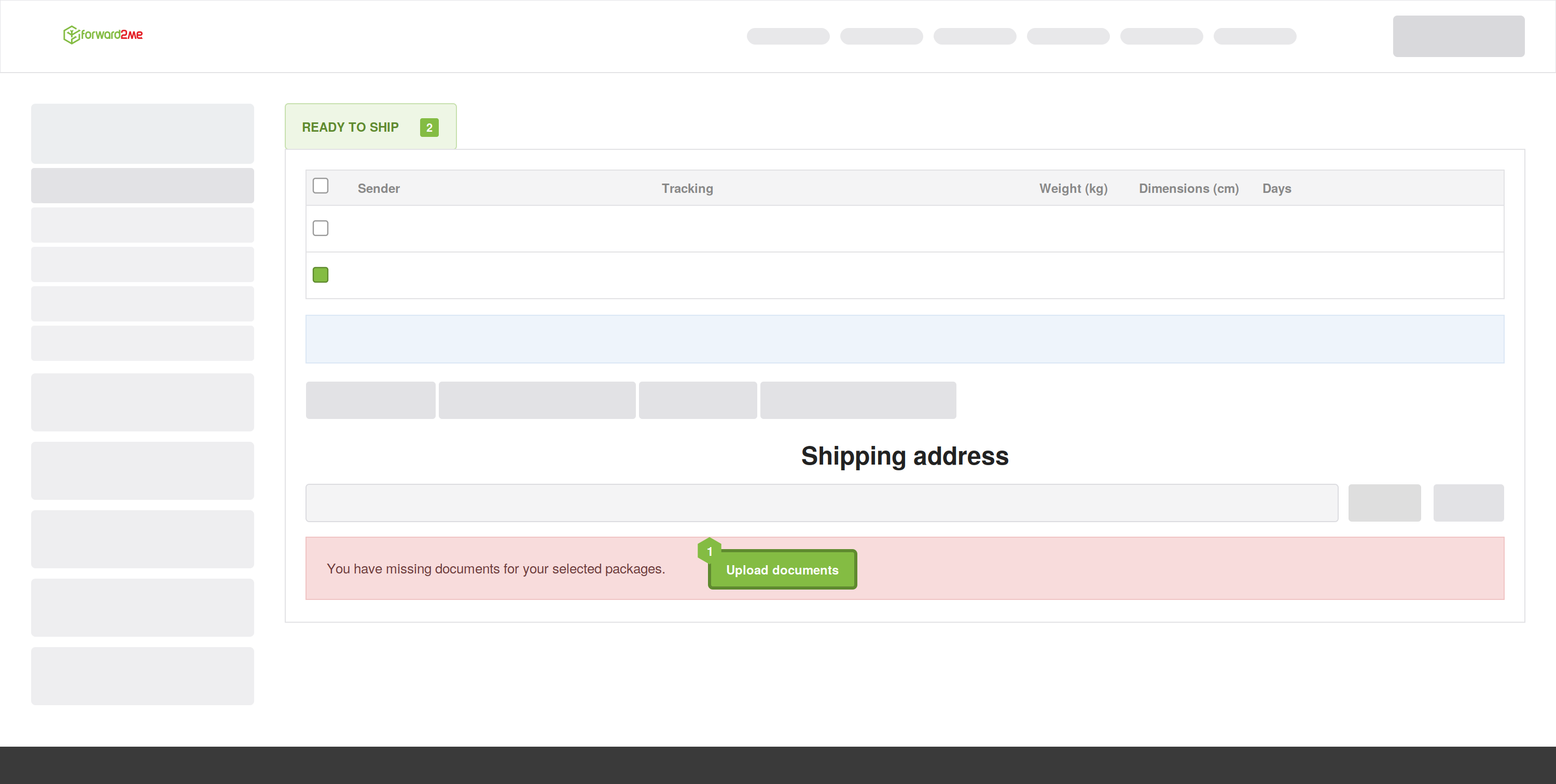
When a document is needed, your account will prompt you to upload it. Here's how.
What Counts as Proof of Purchase
A valid proof of purchase is your order or purchase confirmation showing a description of the goods and their value in each package. For what an invoice needs to show and why one might be rejected, see Incoming Packages & Invoices.
How to Upload Your Document
- Select the package. In your package inbox, tick the checkbox next to the package that needs a document.
- Click "Ship Now." This option becomes available once a package is selected.
- Start the upload. A box will open showing the missing document (for example, Proof of Purchase). Click the Upload button.
- Choose your file. Click Browse, then use the file browser to find the document saved on your device, select it, and open it.
- Add more if needed. To upload additional files, click Add More Files and repeat. If you selected more than one package, you'll need to repeat these steps for each package.
- Submit. Once you've added everything, click Upload Documents.
After You Upload
Your documents need to be approved before you can continue. Once they're approved, you'll be able to ship the package from your inbox as normal.
If you have further questions, please contact our Customer Experience team.